Synthesize insights from the literature
This guide makes reference to templates available in the Roam template lab graph
Literature Synthesis with discourse graphs
Discourse graphs turn literature synthesis into a question-directed activity: instead of merely absorbing disconnected insights from different sources, the discourse graph workflow orients your reading around a central guiding question of your own devising.
- #hyp-candidate This purpose-driven reading increases engagement with the text and retention of salient data.
- #hyp-candidate It also incentivizes reading widely and strategically, as papers from many different authors/fields may have made small but significant contributions to your question.
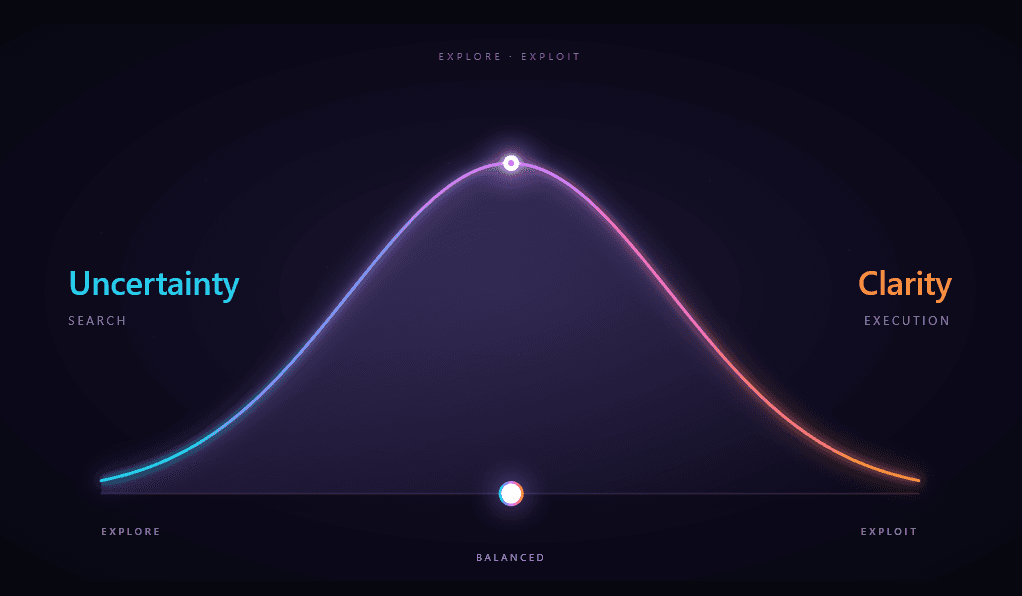
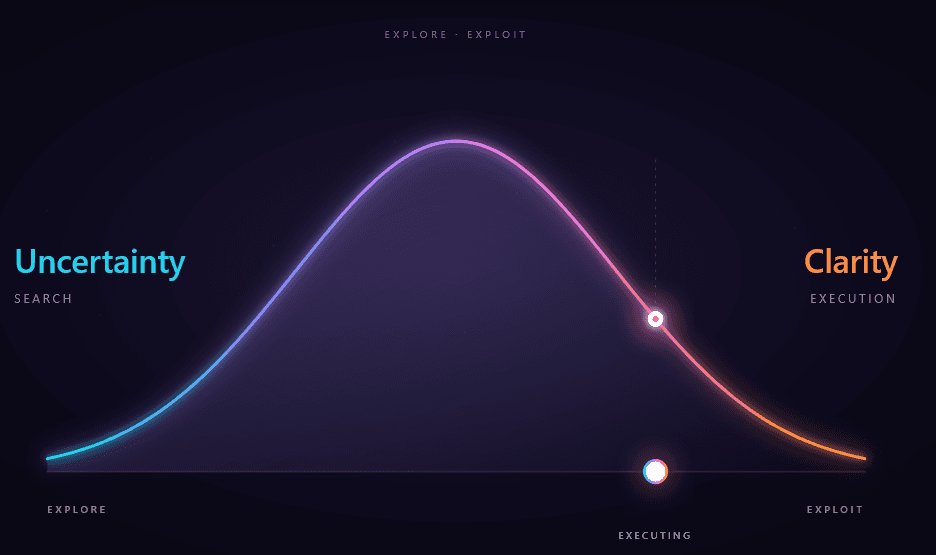
There’s a bit of a chicken-and-egg problem here, as engaging in question-driven analysis of the literature first requires the development of a question, which usually involves at least some loosely-directed exploration. Discourse graphs accommodate both phases of the explore/exploit curve.
Building your library of sources
Let’s assume that your exploration phase is influenced by the items in your reference manager/personal library. The Roam template lab graph uses uses Zotero , a Roam plugin for interacting with the Zotero reference management software..
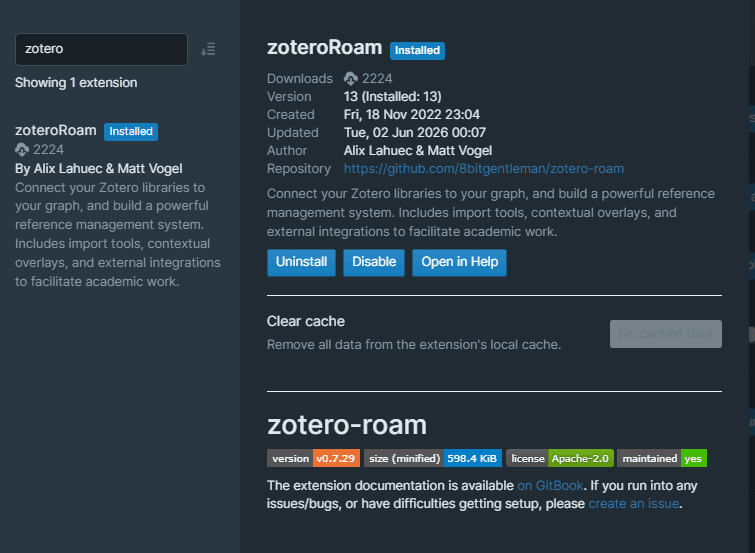 ZoteroRoam is available on Settings>Roam Depot
Managing literature sources with Zotero
For more detailed instructions on importing and citing articles from zotero, check out the tutorials in the template lab graph
Here’s how to get started:
- Install and enable the ZoteroRoam extension from Roam Depot
- Install the Better BibTeX plugin for Zotero and open Zotero Settings
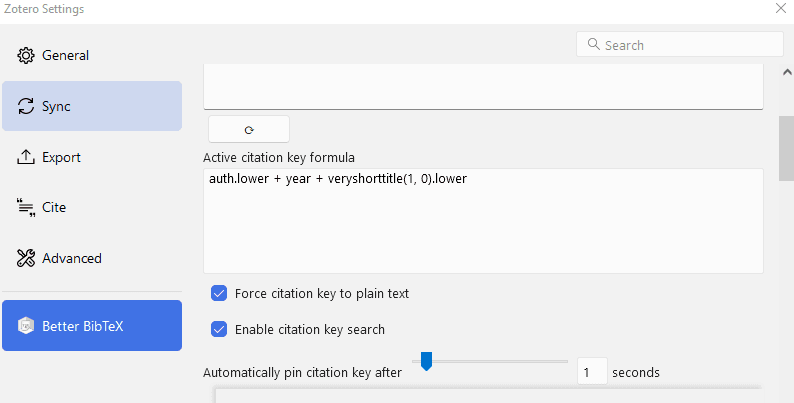 installing Better BibTex
-
Set your Citation key format to:
auth.lower + year + veryshorttitle(1,0).lower -
Set the autoPinDelay parameter to 1
-
Pin your existing citekeys: select all items in view (either with the mouse or the Ctrl-A keyboard shortcut), right-click, then navigate to Better BibTeX > Pin BibTeX key
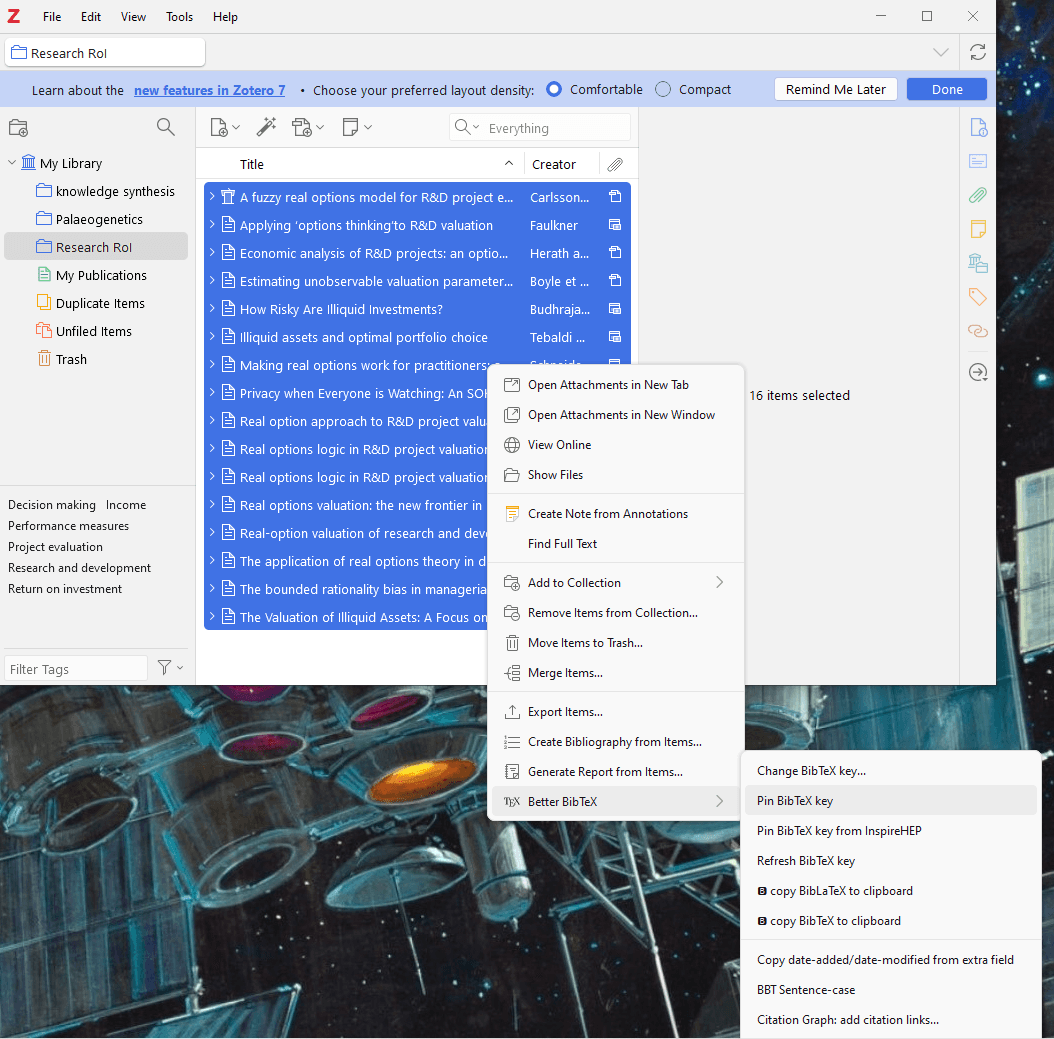 Pinning citekeys
- Back in Roam, navigate to the top right of your screen.
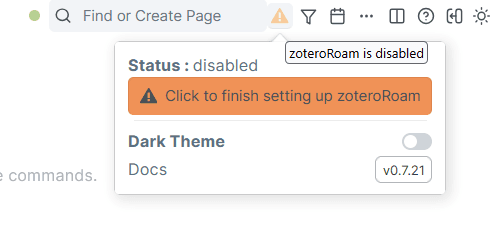 The zoteroRoam icon
- You’ll be prompted to enter an API key and a nickname for your personal or group library
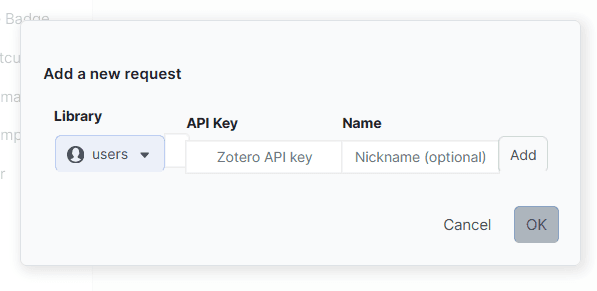 API key prompt
- Login to Zotero on the web and navigate here to get your personal API key. Click on
create new private keyto generate an API key and enter it at the prompt (and record it elsewhere for later use). Your User ID for API calls goes in the area marked with the orange box.
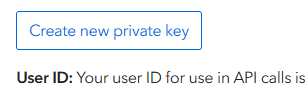 Creating an API key
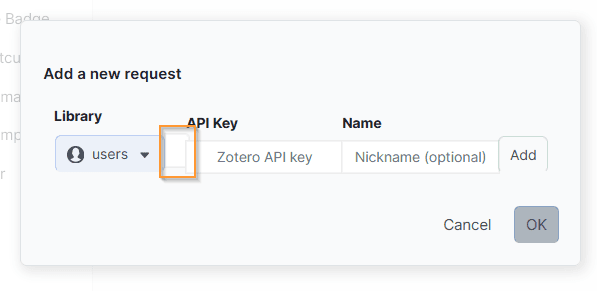 User ID field highlighted in orange
- Now set your permissions. You will probably want to give ZoteroRoam notes access and write access if you want to import your notes and add items to Zotero from Roam.
When ZoteroRoam is up and running, the icon looks like this:
 zoteroRoam is active in your graph
In order to use the metadata and notes page features described below, ensure that zoteroRoam draws from the correct template. Navigate to Settings > Metadata , select ☑️ Smartblock, select By name in the dropdown menu, and type in zoteroRoam Roam Depot Source to load the template.
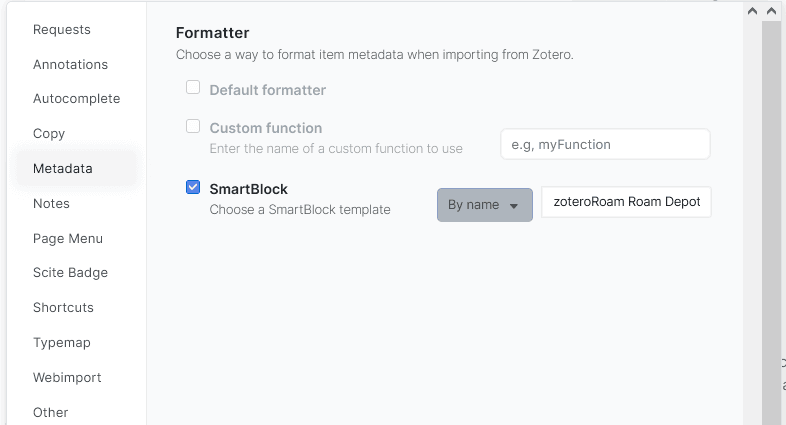 Choosing the SmartBlock template to use for your Source pages. N.B. this step requires the SmartBlock extension
Now when you import articles from your Zotero library to your Roam graph, a Source page will be automatically created to capture your notes in your preferred format.
Organizing your reading
At the outset of the exploration phase, you probably have a topic in mind, or an assertion vaguely in the shape of a question/hypothesis that needs further refinement. You may be reading the literature to understand prior art on the topic. At this point, before a Question or Project has coalesced, some users like to take notes on their Daily Notes Page.
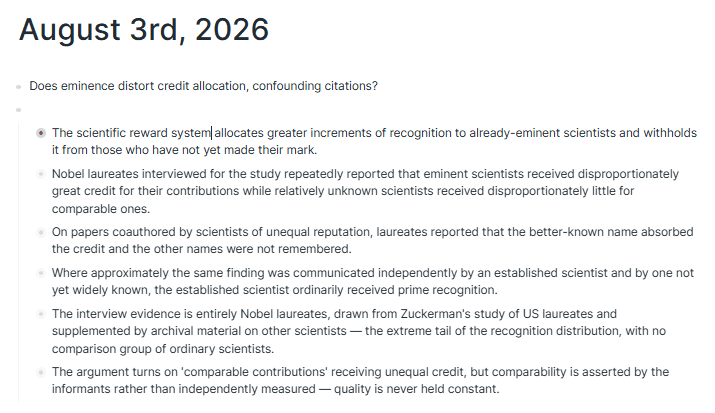 Quick notes on the Roam Daily Notes Page
Quick notes on your Daily Notes Page or on the Source page itself can later be converted to structured note-taking.
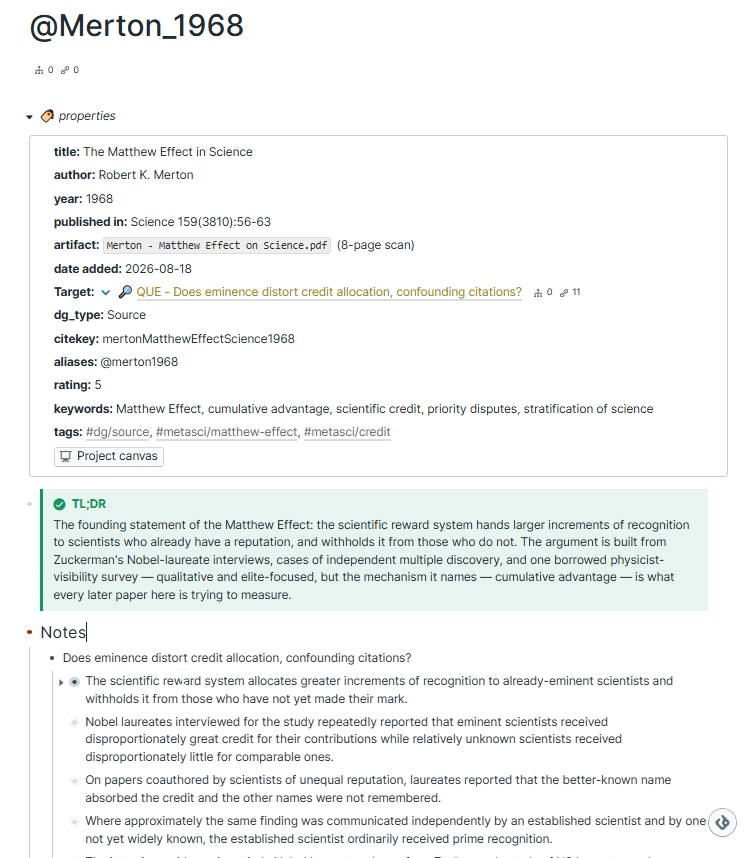 A source page template with a “Notes” section
Reflecting on your reading might inspire you to develop a few candidate questions of your own:
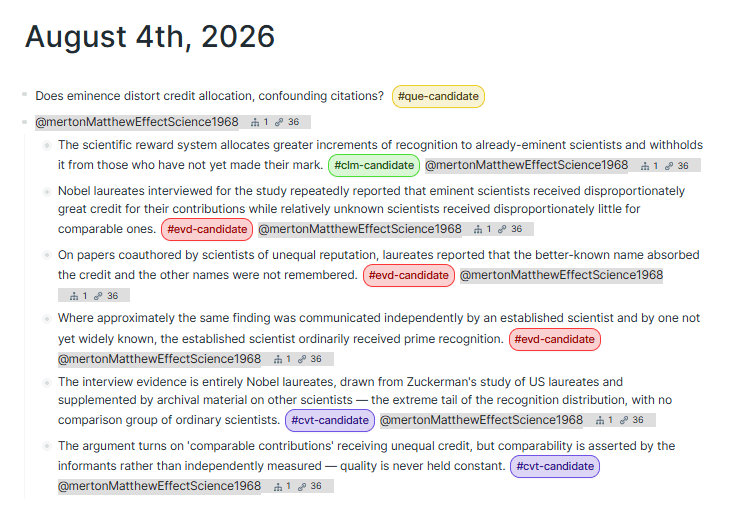 Tagging candidate discourse notes on the Daily Notes Page
Tag your notes with the relevant source page so that they can be easily found later via linked references at the bottom of the source page or through queries.
After further reading, you’re ready to formalize one of these candidates as the Question driving your literature review:
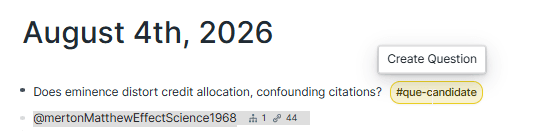 Promoting a candidate question to a QUE node
Now you can read and revisit articles in light of your guiding question, and search for Claims addressing the Question and Evidence supporting those Claims.
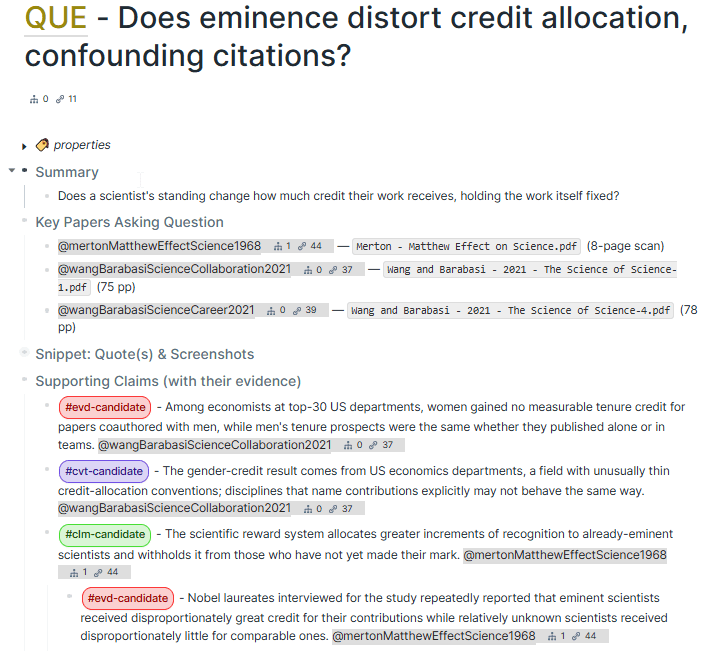 Reading more broadly to investigate a question
EVD and CLM mining
As you read the literature, capture claims and evidence relevant to your Question. You can track them on the Question page itself, on the relevant Source page, or anywhere else in your graph — as long as you tag relevant items with [[[[QUE]] - {your question}]], these mentions will be linked at the bottom of your Question page.
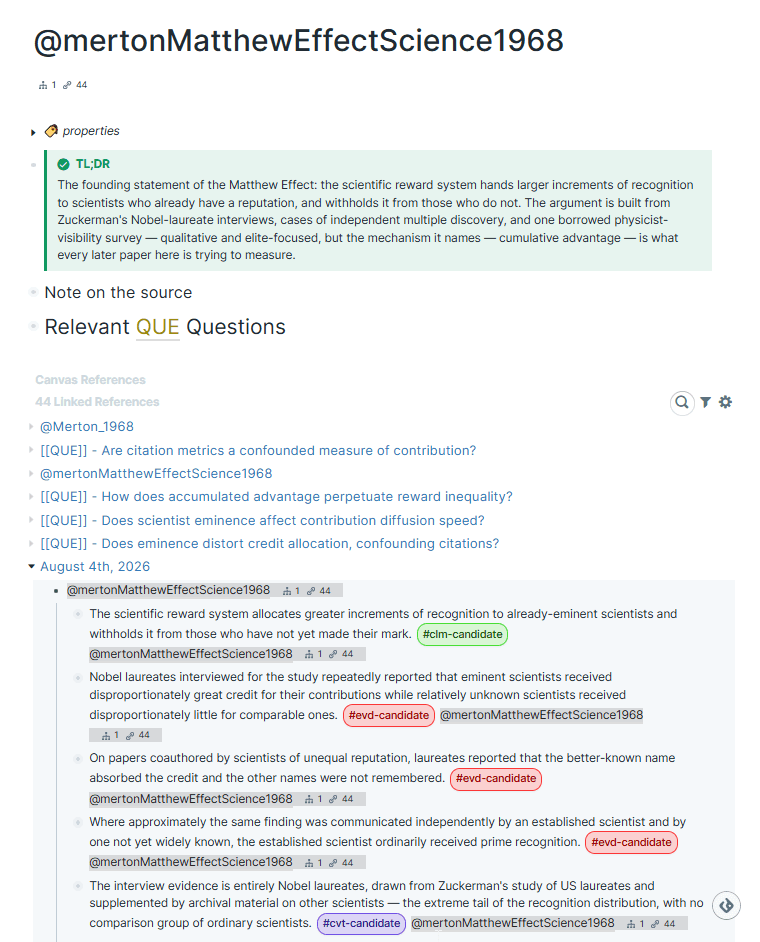 Linked refs to the daily notes page on a source page
Integrating findings from the literature with your research
The Discourse Canvas can be used to assemble your claims and evidence into an overview of the state of the field in relation to your target question.
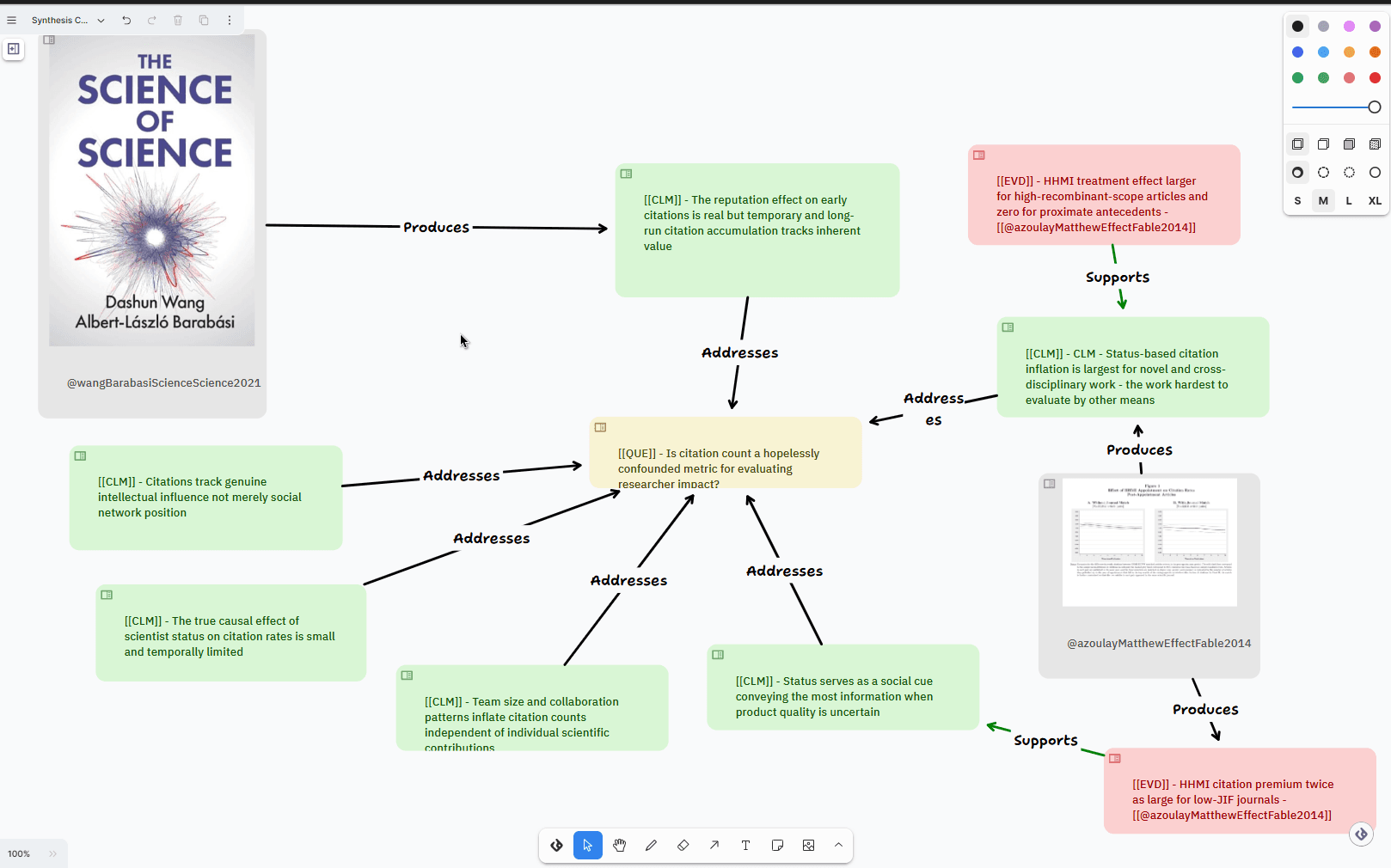 Literature synthesis on the discourse canvas
As you collect and assimilate claims and evidence sourced directly from the literature, you will probably develop a few claims of your own that derive from your reading but aren’t directly stated in any of the articles. This is your Synthesis Claim: an initial position on the question that you’d like to test further.
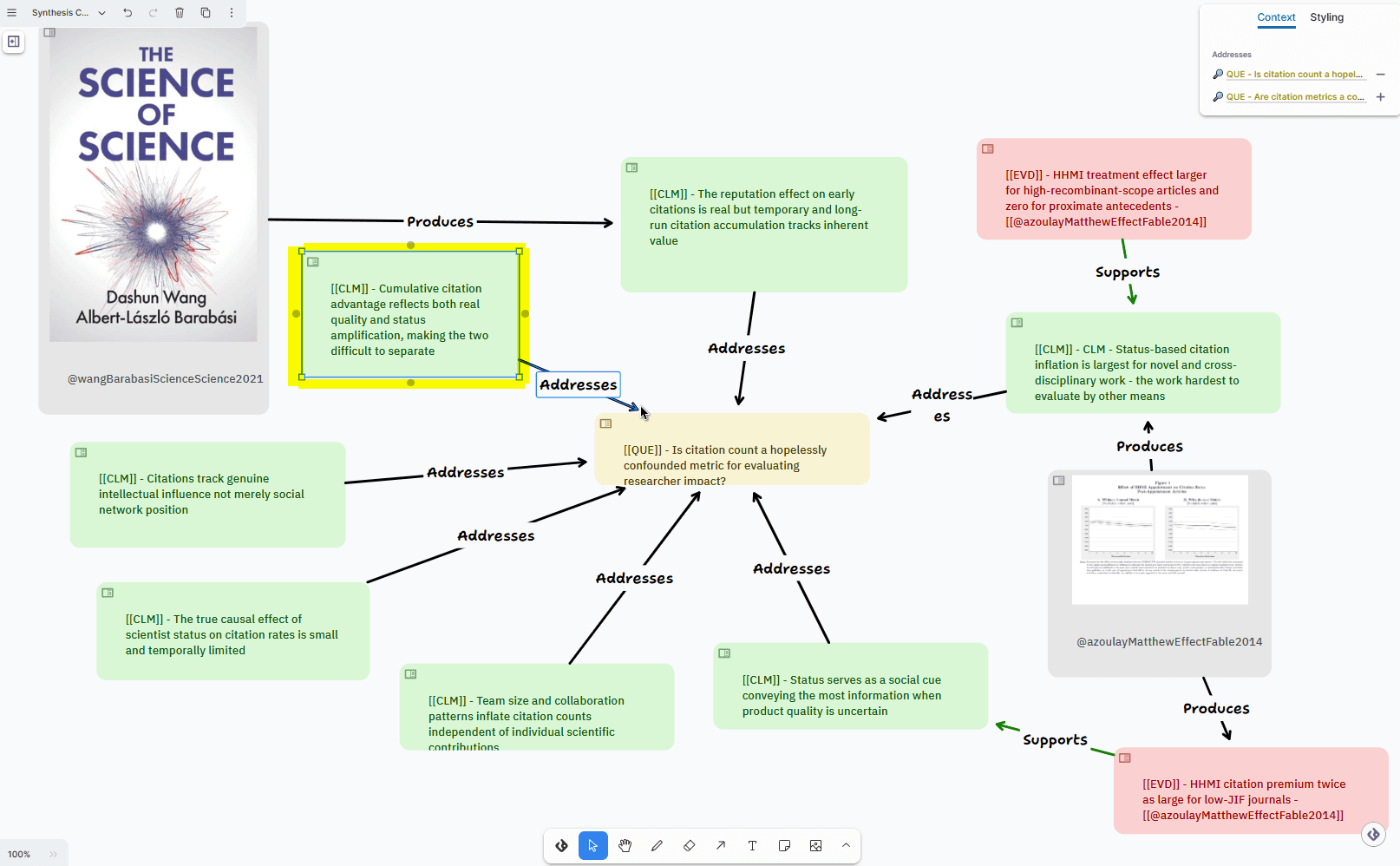 Developing a synthesis claim (highlighted)
This synthesis claim can be used as a springboard for more directed reading and the development of an experiment, simulation, or other test.
Once you’ve metabolized the claim to find testable components, you can add those components to your graph as Hypotheses and begin developing Experiments.
The multiple layers of the tldraw discourse canvas facilitate organizing your research campaign into literature review and project planning phases.
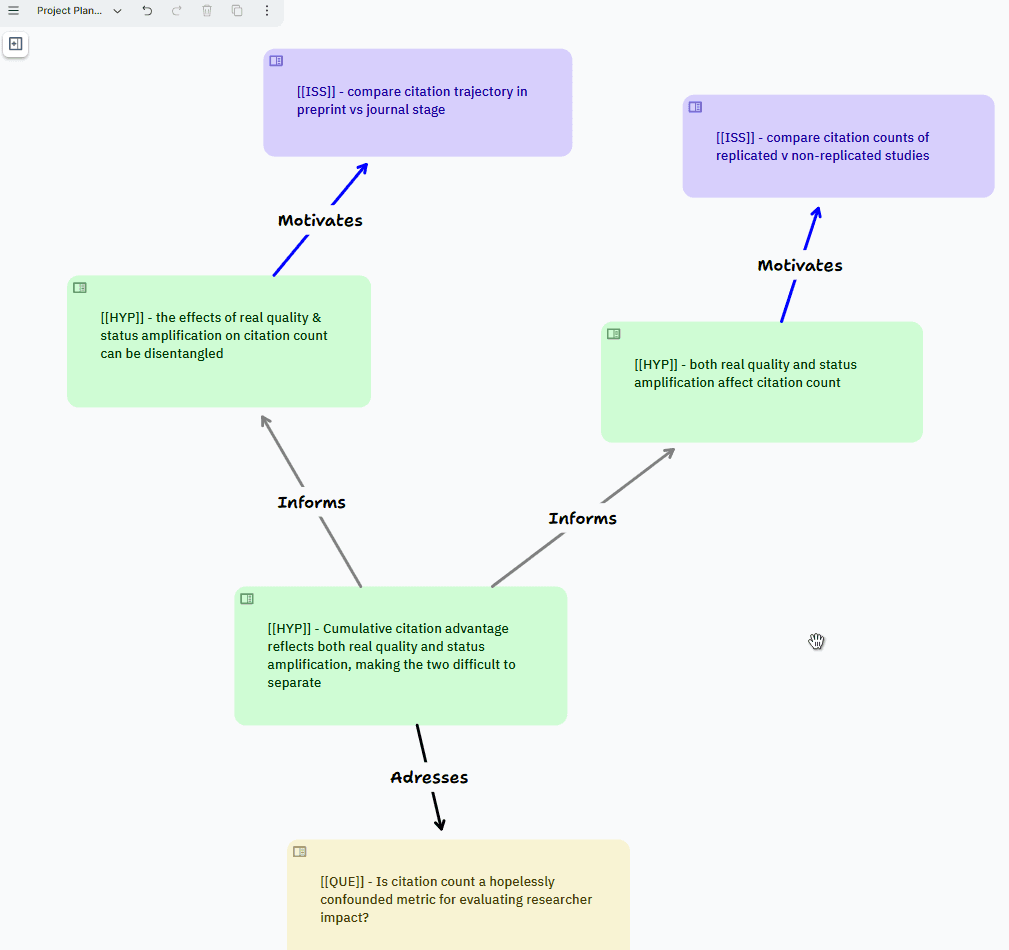 A claim becomes a hypothesis, and the inspiration for two potential experiments
In the discourse graph workflow, these phases are largely simultaneous and mutually informative.
We’re developing an LLM-assisted workflow for extracting claims & evidence from the literature. Join us on Slack to learn more.